
How to Use OX App Suite
OX App Suite offers professional, reliable email with many features at an affordable price. You can use the suite using any web browser in any operating system (ie: Windows, Mac, or Linux). You can also download install the mobile app for your Android or Apple devices.
Manage Email Accounts
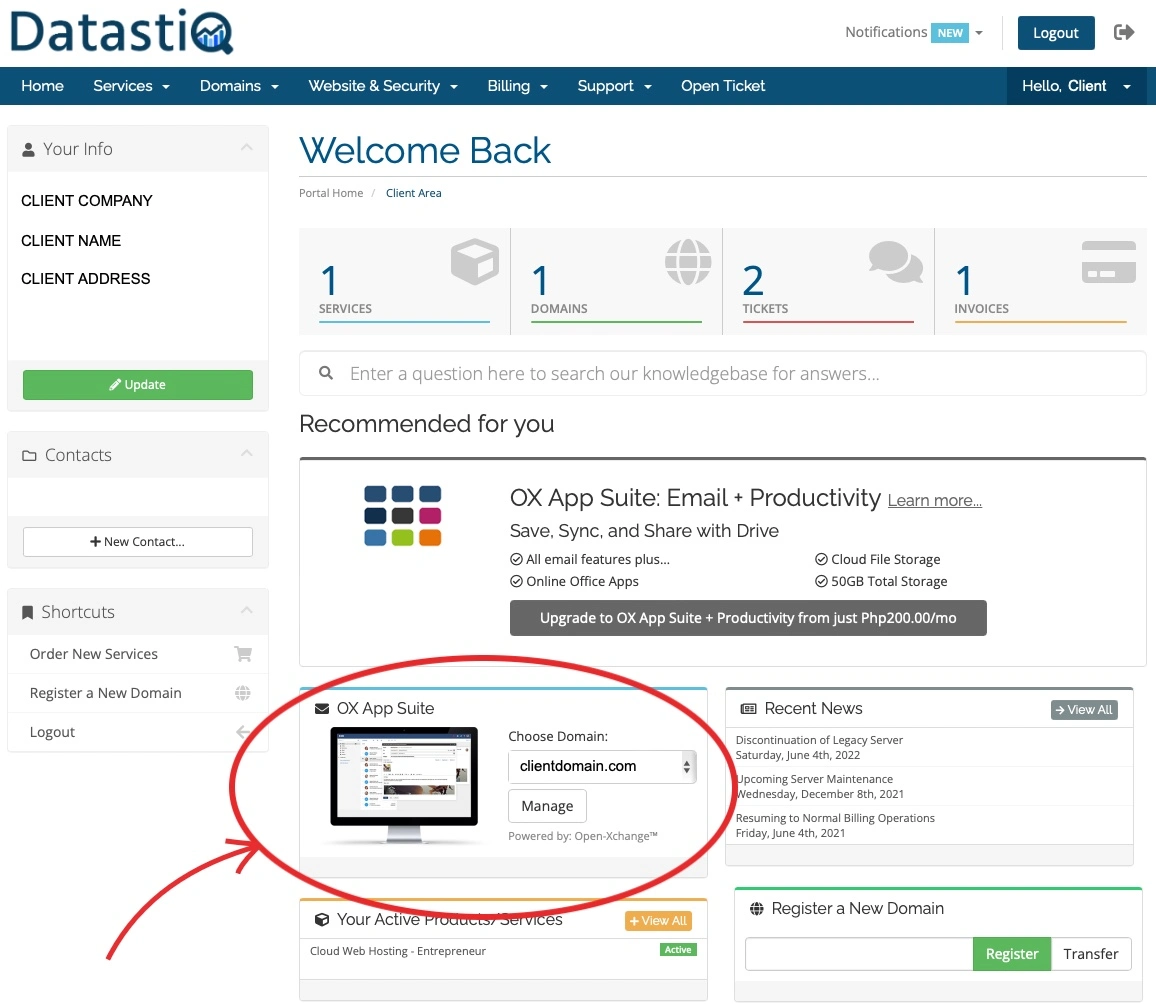
After you purchase OX App Suite or OX App Suite + Productivity, it will appear in your Client Area Dashboard.
To manage OX App Suite for a domain, select that domain and click "Manage". You will see a list of OX App Suite email addresses and, below the email addresses, email client details, and other information.
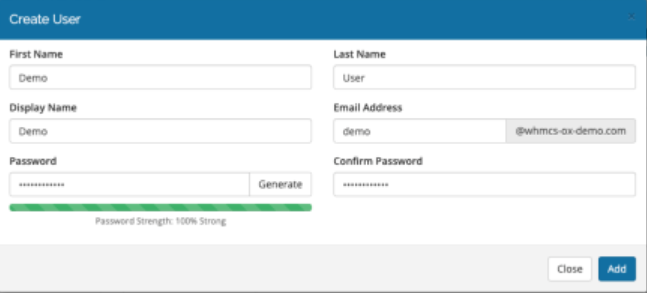
Create User
To add an email address, click "Create User". Then, fill out the form and click Add.
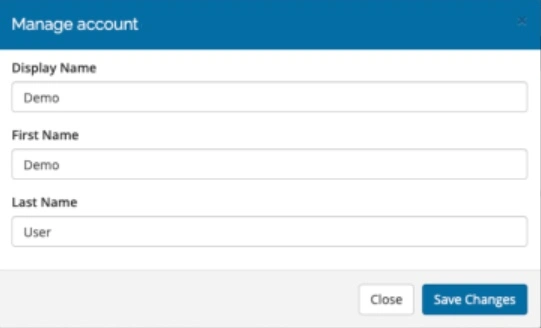
Manage Account
To manage an email address, click "Manage Account". You can update the account's Display Name, First Name, and Last Name.
Set Password
To set the password for an account, click "Set Password". Then, enter and confirm the new password, or click Generate to generate a new password.
Setting up your Domain to point to OX Mail Servers
After setting up your account & password, you need to also point your domain name to the mail server of OX App Suite. This is done automatically upon your sign up although if you need to manually do this, please refer to the OX Welcome Email sent to you for the MX records and SPF Information.
If your Domain Name is purchased with DatastiQ, you can go to Client Area > Domains > DNS Management. If you do not see this function, please reach out to our technical team so that we can enable or we can configure it for you.
